Jane has some fantastic art created by students in her class. I have just discovered a great Photo Montage app called Juxtaposer, so I suggested to her that we could superimpose the children onto the art work. She has decided this would be a great way to do their 'Calendar Art' this year. Calendar Art is a fundraising activity that schools do where they take the children's art and make it into individual calendars that family and friends can buy.
The examples below show how it can be done. Jane is going to get her children to dress up as Medieval Characters, take their photos and then superimpose onto photos of their artwork.
Showing posts with label Art. Show all posts
Showing posts with label Art. Show all posts
Tuesday, July 1, 2014

Tuesday, August 20, 2013
It's all about finding the right tool #1
I have had a lot of teachers asking me recently how can they use their iPads more creatively with the children. This will be the first of many posts, as teachers ask I will post the ideas I have had. My first question is what topic are you doing?
Topic?
Aboriginal Art
What apps are on your iPad?


How can you use these apps?
Use Drawing Pad to create your own Aboriginal Art. Choose the black paper and the Felt tip to create patterns.
Share back to your photo album and insert into
Keynote, Comic Life, Pages or Book Creator - make a presentation of your own art, some examples of Aboriginal art you have found, information about the art,
Safari - Find images via Google, tap and hold on an image to either copy or save to Camera Roll. Don't forget to reference where the images came from.
 Comic Life: choose the blank template then choose Collection under the Layout tab and tap on Maps layout, choose Australia and tap the photo icon in the centre of the map to insert your your own art work. Use Text boxes and picture boxes to cover up the parts of the map that shows other countries.
Topic?
Aboriginal Art
What apps are on your iPad?


How can you use these apps?
Use Drawing Pad to create your own Aboriginal Art. Choose the black paper and the Felt tip to create patterns.
Share back to your photo album and insert into
Keynote, Comic Life, Pages or Book Creator - make a presentation of your own art, some examples of Aboriginal art you have found, information about the art,
Safari - Find images via Google, tap and hold on an image to either copy or save to Camera Roll. Don't forget to reference where the images came from.

Wednesday, August 29, 2012
Book Reviews with iPads and Google Docs
 I was asked to work with some Year 2 and 3 children today on writing book reviews. They had read the story on the school Kindles or the Kindle app on the iPad.
e-Books can be purchased from Amazon

They had discovered how they could write notes.
 I saw this as a great opportunity for writing notes myself and leaving 'Think about' questions and comprehension questions on pages for students to look at while reading the book. Students can then add their answers to the note and all of the group can share their understandings through the note feature.
All of these children have Google app accounts so I made a Google Doc template for them to work from. They used computers for the Google Docs as the Drawing elements cannot be edited on an iPad.
We talked about the book and some of the features of the story and then I showed them the template I had shared with them. I took a couple minutes explaining how they could access the different embedded draw items and then we discussed what 'Synopsis, Review and Character Descriptions were.

Below is Charlotte's work.
A lot of today's session was about getting used to writing and editing in the Google Doc. There was a lot of sharing of ideas and 'how to do things' amongst the group. The next time we work on this template with a new book we will look more closely at the content the students write.
Monday, August 13, 2012
Artrage, Photo Apps and Art
Artrage in one of my most favourite art drawing programmes on both the iPad, iPhone/iPod Touch and the computer, and it was created by Kiwis!
 Art Rage for the iPhone/iPod Touch (NZ $2.59)
Account: No account necessary for apps
Saving: Saves to the app
Sharing options: Send to Photos, iTunes, email, Facebook, Dropbox or Print
Artrage for the iPad (NZ $4.19)

Artrage has a variety of tools, different types of brushes.
The wide brush adds real thick paint effects and the thin brush paints like water colour.
As well as using Artrage for the obvious, painting and drawing, there is nice feature that is included in the Computer Artrage as well.


You can upload a photo so it appears transparent and draw over the top.
The example below shows the pencil with the photo in the background, to the right without the photo.

To the right is an example of the other tools
How could you use this in the classroom?
Students can take photos with their camera and upload to Artrage.
Account: No account necessary for apps
Saving: Saves to the app
Sharing options: Send to Photos, iTunes, email, Facebook, Dropbox or Print

Artrage has a variety of tools, different types of brushes.
The wide brush adds real thick paint effects and the thin brush paints like water colour.
As well as using Artrage for the obvious, painting and drawing, there is nice feature that is included in the Computer Artrage as well.


You can upload a photo so it appears transparent and draw over the top.
The example below shows the pencil with the photo in the background, to the right without the photo.
 |
| Drawn with pencil showing the transparent photo |

To the right is an example of the other tools
How could you use this in the classroom?
Students can take photos with their camera and upload to Artrage.
- Take portrait photos and use the pencil or pen tool to outline the shapes, remove the photo and print out and finish in pencil or pen
- take scenery or object photos, use the pen tool to outline main lines of the photo, remove photo and print out, finish off in paint
Monday, June 11, 2012
Photo apps and effects #1
Some photo apps can be purely gimmicky, but they can also have their uses in education. This is the first post in a series of Photo apps and effects.
 My Sketch (iPad and iPod Touch)
Add Effects: Smudge, Contrast, Photocopy, Colour, Sepia, Smooth, Canvas, Classic, Fine Pencil, Sketchbook, Pastel and many others
Share: Saves to Photo Library, or share to email

This app will provide you with lots of different ways to sketch. Children can take photos of the subject and apply the sketching filters to it. Then they can look closely it at and observe the form, shape, shadows and how the strokes have been applied. This will help them for when they attempt their own sketching on paper.
Add Effects: Smudge, Contrast, Photocopy, Colour, Sepia, Smooth, Canvas, Classic, Fine Pencil, Sketchbook, Pastel and many others
Share: Saves to Photo Library, or share to email

- Take a photo or use one from the library
- Choose an effect from below, if you don't like it, tap the back button
- Play with the brightness and contrast and any other editing tools that might appear
- Tap Save, choose image size
- Tap on Save to photo library or send in an email
How could you use this in education?
This app will provide you with lots of different ways to sketch. Children can take photos of the subject and apply the sketching filters to it. Then they can look closely it at and observe the form, shape, shadows and how the strokes have been applied. This will help them for when they attempt their own sketching on paper.
Wednesday, May 23, 2012
Management of Apps
Students and teachers can waste a lot of time looking for Apps. They need to be categorised and organised into folders.
Set up 'curriculum' pages.
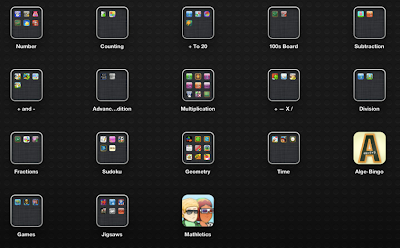
These could be set up into strand, stages and/or Number Knowledge and Number Strategies.
Students should be directed to the folders that are related to the teaching and learning intention of that day.
 Writing
Literacy needs to split up into at least Reading and Writing. Depending on how many apps you have you may split it even further to have a Spelling and Grammar page. In this example I like to have a separate folder that offers many different ways to publish.
 Reading
In this example the books have been divided up into Junior and Senior Books. You may want to consider reading ages as folder names.
I have separated the 'interactive' books such as Mushroom Age or The Mystery of the Crystal Porter as they have less reading and more interactive tasks in them.


The other curriculum apps like Social Sciences and Science can be divided up between pages as well.
Set up 'curriculum' pages.
Maths

These could be set up into strand, stages and/or Number Knowledge and Number Strategies.
Students should be directed to the folders that are related to the teaching and learning intention of that day.
 Writing
Literacy needs to split up into at least Reading and Writing. Depending on how many apps you have you may split it even further to have a Spelling and Grammar page. In this example I like to have a separate folder that offers many different ways to publish.

In this example the books have been divided up into Junior and Senior Books. You may want to consider reading ages as folder names.
I have separated the 'interactive' books such as Mushroom Age or The Mystery of the Crystal Porter as they have less reading and more interactive tasks in them.

Music
I have divided up the music apps into the different categories of- Wind
- Percussion
- Strings
- Singing
- Piano

Art
There are so many wonderful art apps available. I have separated the drawing ones from the apps that do special effects.The other curriculum apps like Social Sciences and Science can be divided up between pages as well.
Subscribe to:
Posts (Atom)